Business details and logo save here for your next invoice.
02
Write your bill
Start with “[Heading] to [Client Name]”, e.g. Quote to Alex. Replace Books or Pen with your item.
Invoice options
Choose Tax added or Tax included inside + Tax.
Item tax, extra costs & discounts
Add tax in the first line:
Invoice to Acme with 15% GST exclusive
Set item rates and named extra costs:
2 x Pencil @100 T5% Code[001234]
2 x Paneer @100 T12%
Shipping Cost @500
Insurance Charge @300
Installation Cost @350
GST on Shipping Cost @18%
Discount @20%
Use a quantity for an item, e.g. 1 x Service @500. A name without a quantity, e.g. Service @500, creates an extra cost. T0% means no item tax. A blank item tax uses the invoice default. “No Tax” removes every tax. Tick Item-wise tax below Tax calculation to show item rates. The Tax Code column appears when enabled or included in your prompt. Discounts reduce items before tax; extra costs are not discounted and are taxed only when you add their tax. Tax names in these examples are editable labels. Add Code[001234] to an item for a product or service code. Click the Code or Tax column heading to rename it, for example HSN/SAC or GST. Each tax cell shows the rate and calculated line tax.
Your business stays your business. Invoice details stay in your browser. No account. No uploading your data.
Live preview A4 document
Edit the invoice below. On a small screen, swipe across to see every column.
My Business
Invoice
Invoice No:
INV-001
Date:
2026-09-22
Due Date:
Upon receipt
Billed To
Acme Ltd
Client Address & Contact Details
Status
Unpaid
#
Item Description
Tax Code
Qty
Unit Price
Taxable
Tax
Amount
Amount in words
Tick Item-wise tax to edit each rate; a blank rate uses the default. Taxable excludes tax after item discounts. Amount includes tax and item discounts. Extra costs are separate.
Subtotal
0.00
Tax10% Excl.
0.00
Discount
-0.00
Total
0.00
Payment details & QR (optional)
PNG, JPG or WebP · Up to 2 MB. Use a reusable QR without a fixed amount; the code will not change with your invoice total.
Saved in this browser and reused on new invoices. You can edit or remove these details anytime.
Payment details
Scan to pay
Authorized Signatory
Notes
Thank you for your business!
Terms & Conditions
Payment is due within the agreed payment terms.
Tap or click any invoice detail to edit
Ready when you are.Your professional invoice, one click away.
The Bangladesh invoice generator for freelancers & businesses
A simpler way to bill clients in Bangladesh and across the world. Create professional commercial invoices, export bills for IT/freelance clients, and service statements in Bangladeshi Taka (৳ / BDT) with your 13-digit BIN or 12-digit e-TIN, bKash / Nagad payment numbers, and bank routing details, ready to download as a clean PDF.
Whether you are an independent software engineer in Dhaka billing US clients, a creative agency in Chittagong, a BASIS member exporting IT-enabled services (ITes), or a local trading business issuing bills in Taka, InvoiceMove calculates your VAT, formats your tax IDs, and generates clean PDFs with zero signup required.
What to include on a Bangladeshi Invoice & Billing Statement
Document Title: "Commercial Invoice", "Tax Invoice" (কর চালানপত্র / Mushak-6.3 for registered domestic VAT supplies), or "Bill of Supply".
Your business identity: Legal business name, address, phone number, and 13-digit BIN (Business Identification Number) or 12-digit e-TIN.
Client details: Customer or company name, billing address, and their BIN / e-TIN (for local B2B transactions) or foreign client details.
Invoice metadata: Unique sequential invoice number (চালান নম্বর) and issue date (তারিখ).
Detailed item breakdown: Description of goods or services, quantities, unit rates in Bangladeshi Taka (৳ / BDT), and line totals.
VAT calculation: Standard 15% VAT (মূল্য সংযোজন কর / মূসক), applicable truncated rate (5%, 7.5%, 10%), or 0% / "No Tax" for zero-rated IT exports under Section 21 of the VAT Act 2012.
Payment instructions: Local bank transfer details (Bank name, Branch, Account number, 9-digit Routing Number for BEFTN/NPSB/RTGS) and Mobile Financial Services (MFS: bKash Merchant/Personal, Nagad, or Rocket).
How to create your BDT invoice
Add your business information: Enter your company or freelancer name, address, and 13-digit BIN or 12-digit e-TIN. Upload your business logo for an immediate polished look.
Enter customer information: Fill in your client's name, billing address, and their BIN / e-TIN in the Local invoice & tax details tab.
Add billable services or items: Add line items with quantities, rates, and clear descriptions in Bangladeshi Taka (৳ / BDT).
Set VAT rate: Apply 15% standard VAT for domestic taxable supplies, a reduced truncated rate (5%, 7.5%, 10%), or choose "No Tax" (0%) for zero-rated IT exports or turnover-exempt thresholds.
Add payment instructions: Provide your bKash / Nagad wallet number, bank account details, and 9-digit routing number in the Notes section, then download your free PDF instantly.
Example: Web development and IT services invoice in Bangladeshi Taka (BDT)
This creates a standard commercial invoice for IT and digital services in Bangladesh.
Try this sample in the editor
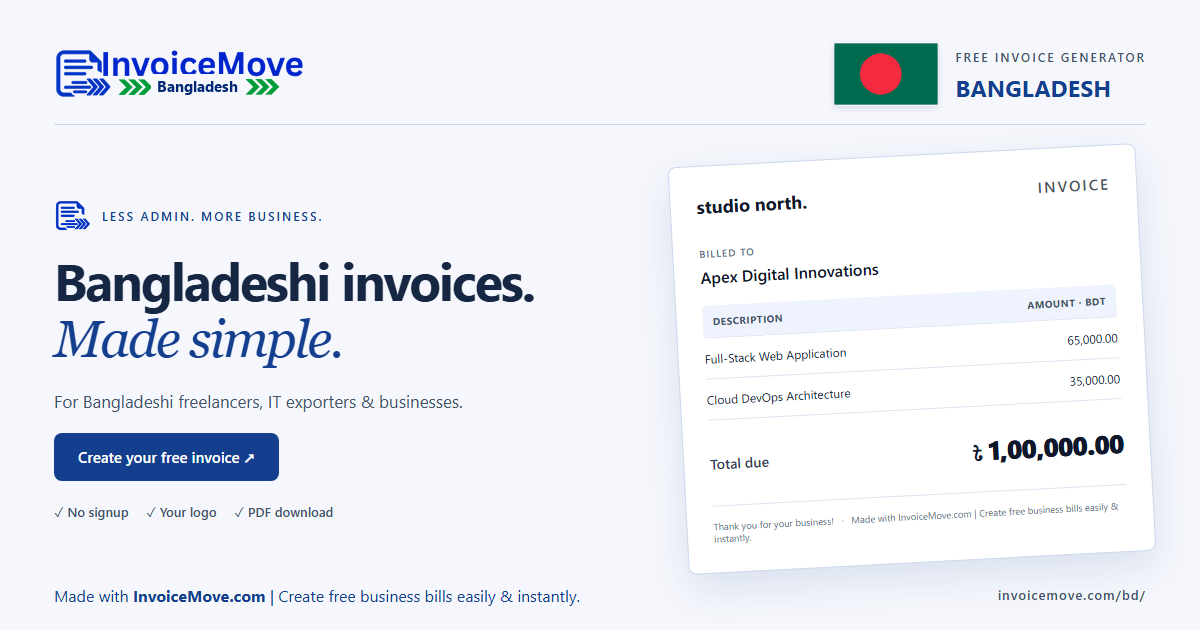
Invoice to Apex Digital Innovations Ltd
BIN: 001234567-0101
1 x Full-Stack Web Application Development @ 65000 T15%
1 x Cloud Server Setup & DevOps Automation @ 35000 T15%
Due in 15 days
Notes: Payment via Bank Transfer: BRAC Bank PLC, Gulshan Branch, A/C: 1501204567890001, Routing: 060261325. Or bKash Merchant: 01711-000000.
The 15% standard VAT rate is calculated on taxable services. Replace the sample company, BIN, bank account, and bKash details with your own.
Important compliance note on National Board of Revenue (NBR) & Mushak-6.3: Under the Bangladesh Value Added Tax and Supplementary Duty Act 2012, registered businesses making domestic taxable supplies must issue the official government tax invoice known as Mushak-6.3 (মূসক-৬.৩). For freelance exports, ITes (software/digital service export), international cross-border clients, and general commercial billing, a standard Commercial Invoice in PDF format is universally accepted by clients and Bangladeshi foreign exchange banks (for issuing Form C / PRCs). Ensure you maintain required NBR records and VAT registers for all taxable transactions.
Download a copy for your records. Drafts save in this browser, do not sync between devices, and may be lost if site data is cleared.
Bangladesh invoice questions
What is the difference between BIN and e-TIN in Bangladesh?
A BIN (Business Identification Number - ব্যবসায় সনাক্তকরণ সংখ্যা) is a 13-digit registration number issued by the NBR through the VAT online portal (vat.gov.bd) for VAT-registered entities. An e-TIN (Taxpayer Identification Number - করদাতা সনাক্তকরণ সংখ্যা) is a 12-digit number used for personal and corporate income tax filing. If you are registered for VAT, include your 13-digit BIN. Unregistered freelancers and individual professionals can include their 12-digit e-TIN.
Is VAT charged on IT freelancing and software export services?
No. Under Section 21 of the VAT and Supplementary Duty Act 2012, export of goods and services is zero-rated (0% VAT). If you are a freelancer or agency exporting software, digital marketing, or IT-enabled services (ITes) to foreign clients and receiving remittance through banking channels, your invoice is zero-rated. You can click "No Tax" in the editor.
What is Mushak-6.3 (মূসক-৬.৩) and do I need it?
Mushak-6.3 is the mandatory statutory tax invoice format prescribed by NBR for domestic sales by VAT-registered businesses in Bangladesh. When selling goods or services to local Bangladeshi businesses that require input tax credit, registered suppliers must generate Form Mushak-6.3. This tool creates clean commercial invoices and billing summaries in PDF format, ideal for B2B communications, international client billing, and inward remittance claims.
How do I add bKash or Nagad payment details to the invoice?
You can enter your bKash Merchant number, Personal "Send Money" wallet, or Nagad/Rocket account number directly into the Notes or Payment details section. You can also upload a QR code image of your bKash merchant or personal wallet so clients can scan and pay directly from their smartphone app.
What details are needed for receiving bank transfers via BEFTN or NPSB?
To receive local interbank transfers, include your Bank Name (e.g., BRAC Bank, Dutch-Bangla Bank, City Bank), Branch Name, Account Name, Account Number, and the 9-digit Bangladesh Bank Routing Number in the Notes section.